OverlayComposer shows all your stream widgets through one Browser Source in OBS. You arrange the widgets in a visual editor, and every OBS scene gets its own layout.
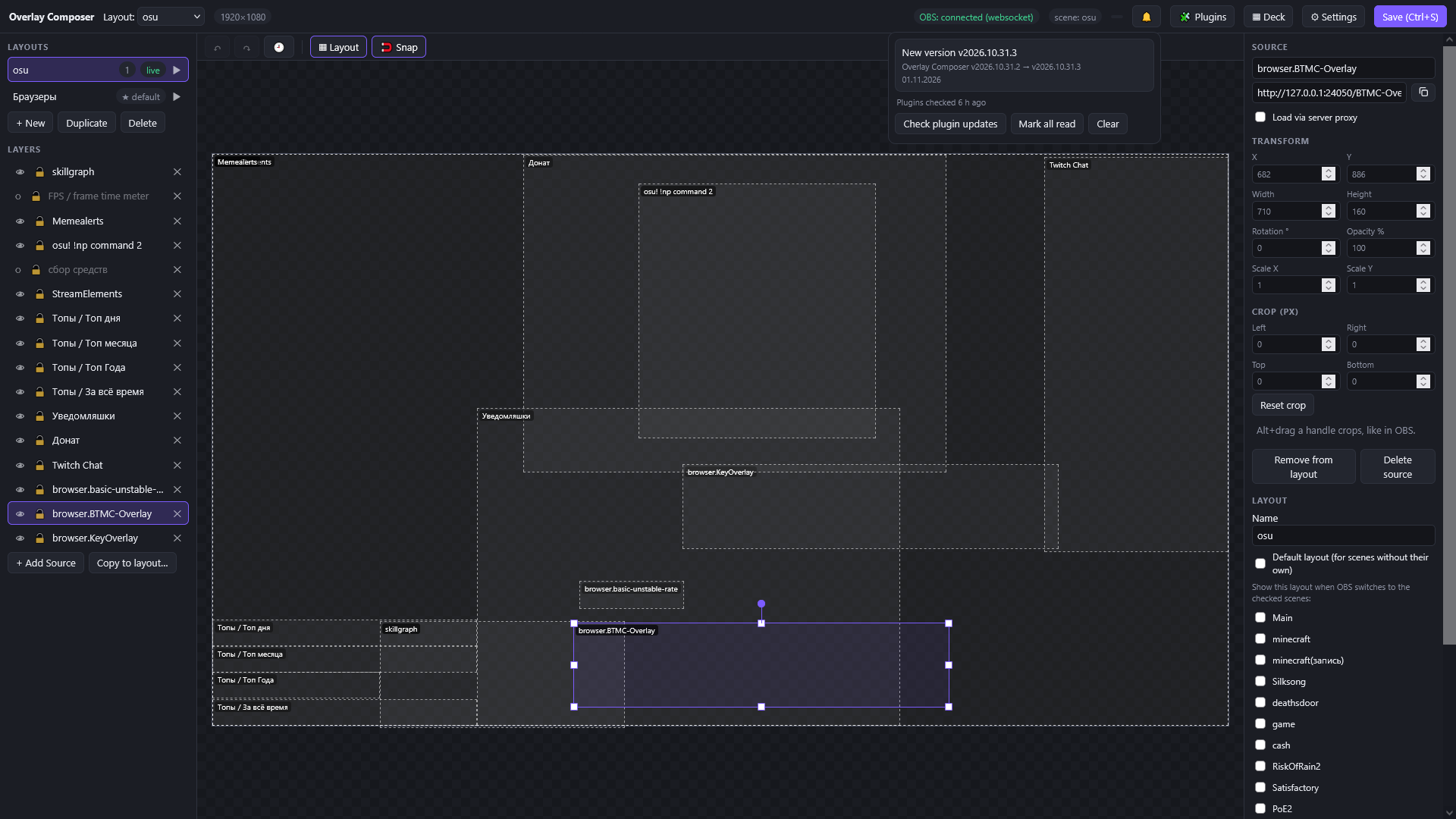 The editor. Dashed outlines are the widgets of the layout, the panel on the right shows the selected layer.
1. Install and run
- Download the latest build for your system from GitHub Releases:
overlay-composer-windows-amd64.exeoroverlay-composer-linux-amd64. - Run it. On Windows there is no console window; the app lives in the system tray (the icon opens the editor, the data and log folders, and quits the app).
- The editor opens in your browser at
http://127.0.0.1:8000/editor.
The app runs entirely on your computer. A second launch does not start a second server, it just opens the editor again.
Windows SmartScreen may warn about an unsigned program: choose More info → Run anyway. SHA256 checksums are at the bottom of every release.
2. Add the overlay to OBS
In OBS add one Browser Source with the URL http://127.0.0.1:8000/overlay, with the width and height of your canvas (for example 1920 × 1080), to every scene where you want the overlay. Details are in Connecting to OBS.
Already have scenes in OBS? You don’t have to build everything from scratch. Connect obs-websocket and use Import from OBS: your existing scenes become layouts, with every Browser Source as a layer of the same size and position. After that you only choose which layout is bound to which scene (the checkboxes in the right panel of the editor), and replace the old sources in OBS with the single overlay one.
3. Build a layout
- In the editor choose + Add Source. The tabs are: a web page by URL (the same address you would put in a Browser Source), an already created source, ready-made widgets from plugins, and a local HTML file.
- Drag the widget on the canvas, resize it by the corners, rotate it by the handle, set opacity in the right panel.
- Press Save (Ctrl+S).
- Bind the layout to OBS scenes with the checkboxes in the right panel, or mark it as the default layout for scenes that have none.
Switch the scene in OBS and the overlay shows the matching layout.
4. Watch the FPS, and what to do if something is off
The fps-meter plugin (Add Source → Plugin store…) is a widget that shows the FPS of the whole overlay right on the canvas, so you can see the numbers while you stream or play.
If the overlay stutters or the FPS drops, try switching Enable Browser Source Hardware Acceleration in OBS (Settings → Advanced) and restart OBS: on some systems it helps when it is turned off, on others when it is turned on. More in Troubleshooting.
Where to go next
- Connecting to OBS: obs-websocket, importing scenes from OBS.
- Layouts and editor: all editor controls.
- Settings: remote devices, Twitch accounts, data folders.
- Deck: switch scenes from a tablet.
- Widgets and plugins: the plugin store and your own widgets.