The Browser Source
- Start OverlayComposer.
- In OBS add a Browser Source to a scene.
- Set its URL to
http://127.0.0.1:8000/overlay. - Set its width and height to your OBS canvas, for example 1920 × 1080.
- Add the same source to every other scene where you want the overlay (Add Source → Add Existing).
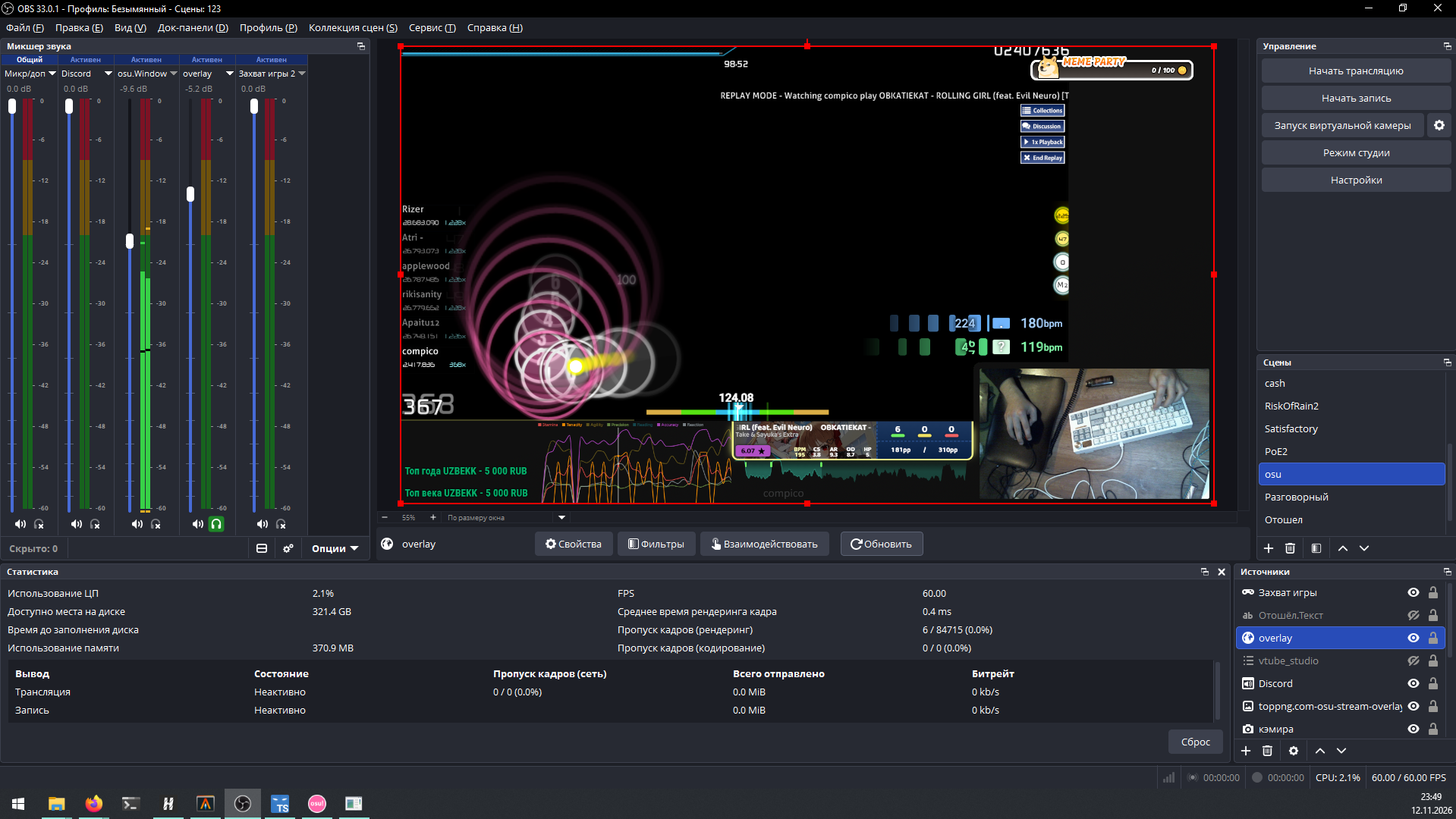 One Browser Source named
overlay: all widgets of the current layout are drawn inside it.
OverlayComposer switches the visible layout when the active OBS scene changes. A scene without its own layout shows the default layout.
Connect obs-websocket (recommended)
With obs-websocket the app knows the full list of OBS scenes (to bind layouts to) and the current scene, and the Deck can switch scenes.
- In OBS: Tools → WebSocket Server Settings → Enable WebSocket server (set a password if you like).
- In OverlayComposer: ⚙ Settings → OBS, tick Connect to OBS via obs-websocket, enter the URL (usually
ws://127.0.0.1:4455) and the password. It is applied immediately; Reconnect now retries.
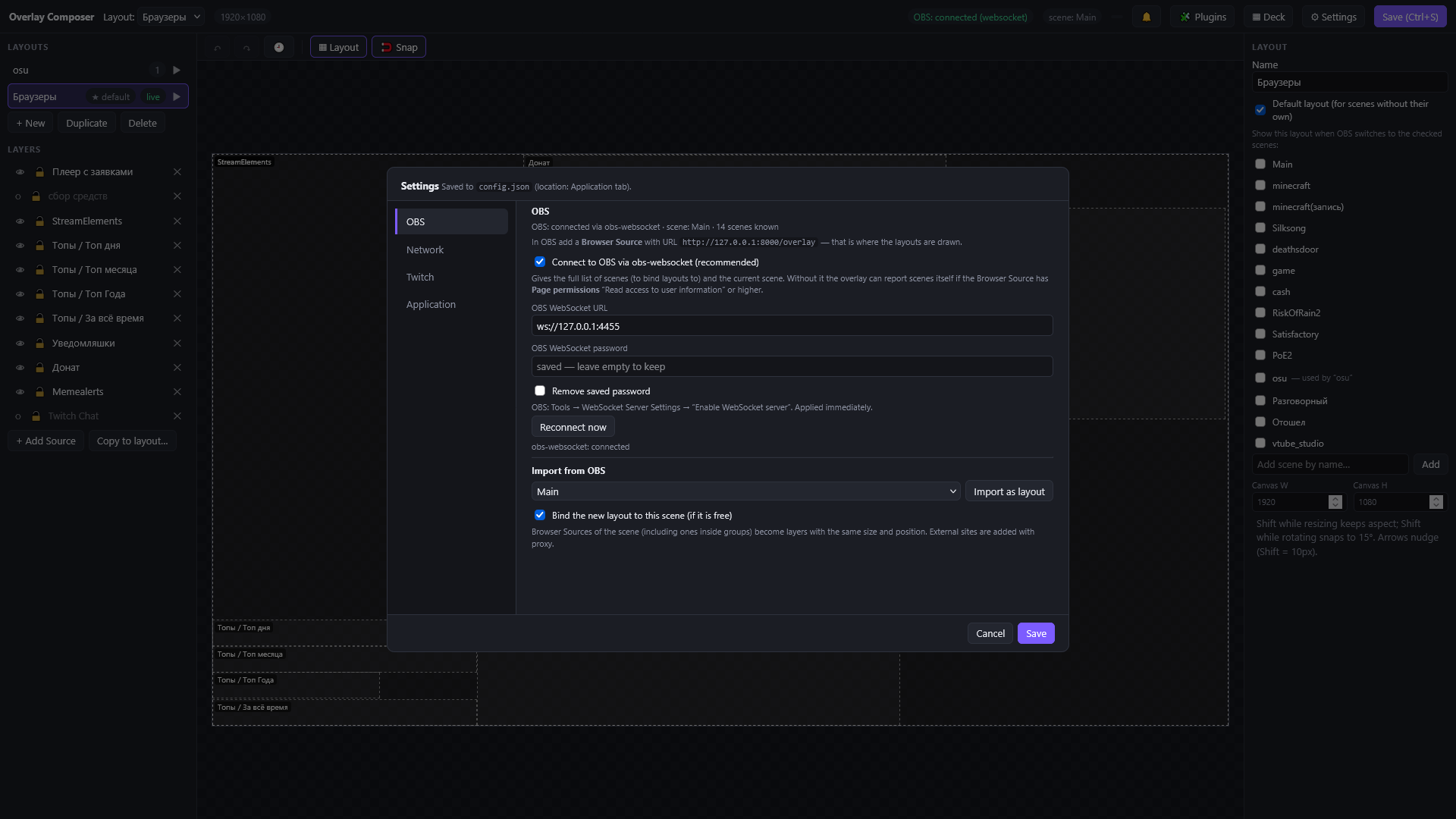 Settings → OBS: the connection status, the Browser Source URL, the obs-websocket address and the importer.
Without obs-websocket the Browser Source reports the scene itself, but only if its Page permissions are set to Read access to user information or higher.
Import a scene from OBS
⚙ Settings → OBS → Import from OBS: pick a scene and press Import as layout. Every Browser Source of the scene (including ones inside groups and nested scenes) becomes a layer with the same size, position, rotation, order and visibility. External sites are connected through the proxy; localhost and 127.0.0.1 addresses are used directly.
Not imported (they are listed in the report): crop (set it in the editor), flip, filters, local files and non-browser sources.
Address and port
The server listens on 127.0.0.1:8000 by default. Change it in Settings → Network (applied after a restart). Do not expose it to other networks unless you understand the risk; other devices must pair first, see Settings.