Open ⚙ Settings in the editor header. The window has four tabs; Save applies the changes, and everything is stored in config.json.
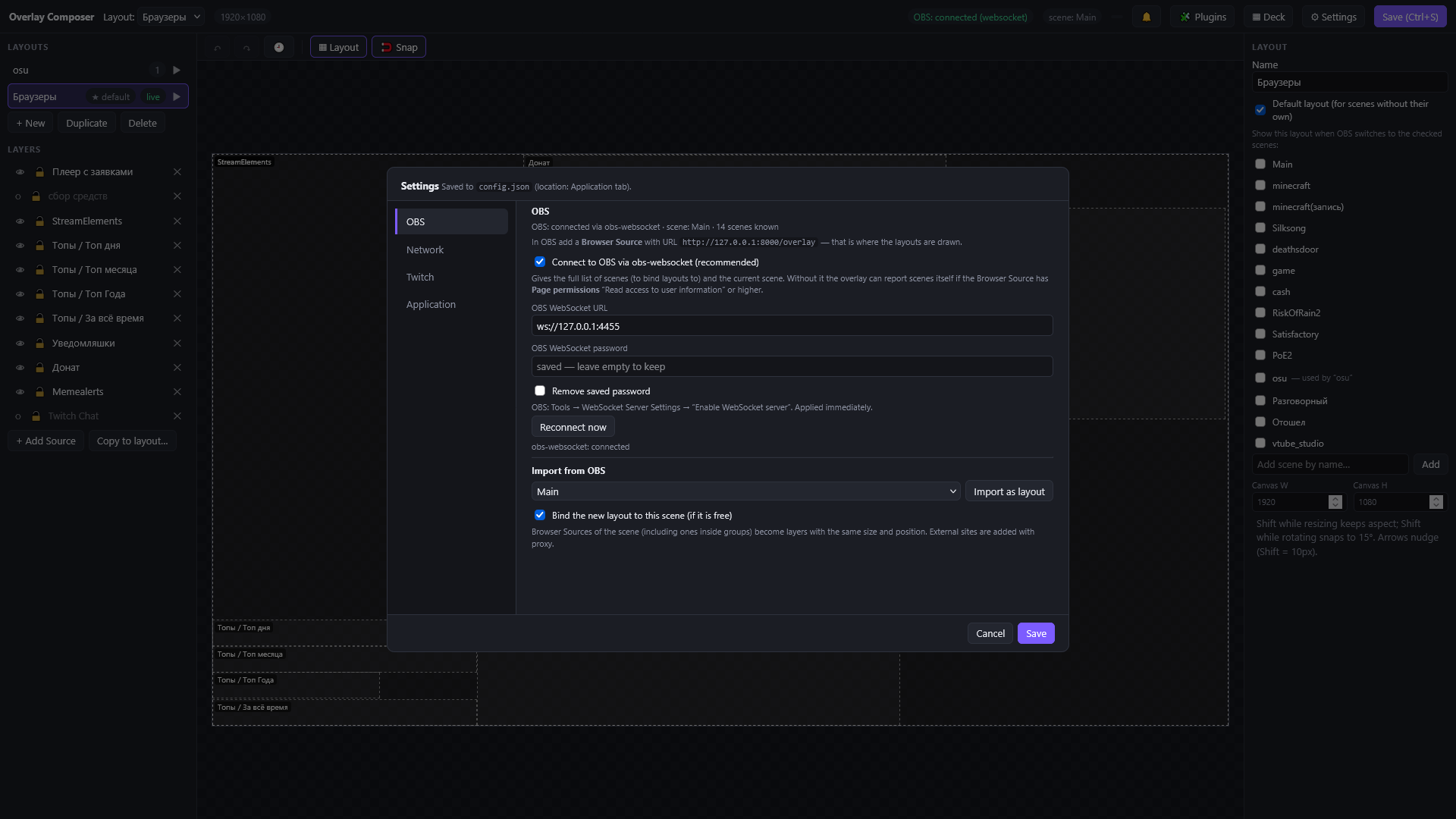
OBS
The connection through obs-websocket, the URL for the Browser Source, and the importer of OBS scenes. See Connecting to OBS.
Network
- Listen on and Port: by default
127.0.0.1:8000, reachable only from this computer. Applied after a restart. - Log proxy traffic prints every proxied request to the server console (and log). Turn it on only while debugging a widget that does not react.
Remote devices (tablet, phone)
From this computer (127.0.0.1) the editor and the overlay open without a login. To use another device:
- Set Listen on: All network interfaces, save and restart the app.
- Open Settings → Network → Remote devices. It shows a 6-letter code, hidden as
••••••until you click it. The code works once and changes every minute. - On the other device open
http://<computer IP>:<port>/pairand enter the code. The device gets a permanent token (cookie) and appears in the list, where you can Revoke it.
The code and the device list are visible only on the computer itself. Guessing is limited to 5 attempts per address, then a 5 minute block. The connection is plain HTTP, so use it only on a network you trust. Requests that carry X-Forwarded-* headers (behind a reverse proxy or tunnel) count as external and need a token as well.
The pairing page can send the device straight to the Deck: /pair?next=/deck.
Isolation of proxied sites
Sites opened through the proxy are third-party code. The proxy therefore listens on a separate port (port + 1, for example 8001), so such pages cannot reach the app API. Keep that port free; change it with "proxyPort" in config.json, or -1 to switch the isolation off (only if some widget does not work with it).
Twitch
Accounts are needed by plugins that read the chat and write to it, and for channel point rewards. Available only from this computer.
- Create an application at
dev.twitch.tv/console: Client Type: Confidential, and add the OAuth Redirect URL shown in the settings (http://localhost:<port>/auth/twitch/callback). - Enter the Client ID and Client Secret, Save application. Changing the Client ID disconnects the accounts.
- Press the copy icon next to Streamer (the channel owner) or Bot (optional account that writes to the chat). The authorization link goes to the clipboard and is valid for 10 minutes; open it in a browser where that Twitch account is signed in (a private window works for the second account).
Requested scopes: chat:read and chat:edit, and for the streamer also channel:read:redemptions and channel:manage:redemptions. If you connected the account earlier, the notification center asks to reconnect it.
Tokens and the Client Secret are stored encrypted on this computer only, refreshed automatically, and never given to the editor or to plugins. Disconnect forgets the account and revokes the token.
Application
Version, the paths of the data and log folders (buttons open them), Start with the system, and Quit Overlay Composer.
| OS | Config | Data and logs |
|---|---|---|
| Windows | %APPDATA%\OverlayComposer\config.json (+ secret.key) | %APPDATA%\OverlayComposer\data, plugins, logs |
| Linux | ~/.config/overlay-composer/config.json | ~/.local/share/overlay-composer/{data,plugins,logs} |
| macOS | ~/Library/Application Support/OverlayComposer | the same folder |
Launch flags: --home DIR (portable mode: config, data and logs in DIR), --autostart, --no-open, --no-tray, --version.
Secrets
Twitch tokens, the Client Secret, the obs-websocket password and the device signing secret are stored encrypted (AES-256-GCM). The key is the file secret.key next to config.json; on Windows it is additionally protected by DPAPI. This protects a leaked data folder or a backup without the key; it does not protect against malware running as your user. To back up or move the app, copy config.json together with secret.key. If the key is lost the app still starts, but Twitch accounts and paired devices must be connected again.
Updates
A release build checks for a new version 10 seconds after launch (at most once per 6 hours) and shows it in the tray menu and in Settings; it never replaces the file by itself. Disable with "noUpdateCheck": true in config.json. Plugin updates appear in the notification center (the bell), which also explains what to do after an update.